Welcome, founding tester.
Thank you for helping me shape Nümia before anyone else. Everything you need is on this page: what Nümia is, your role, how to set it up, what to try, how to send feedback and what you get. You won't need to ask anyone anything.
— Tessa Roberts
14 days
from the day you create your account
Nümia with Vera
free, the full experience
No card
you will never be charged
About 10 minutes a day
or as much as you like
What Nümia is
Nümia is a calm digital planner for ambitious people. Your year, month, week and day live in one place, together with your to-dos, habits, goals, lists, finances, trips and a Future Board for the life you want. Vera is the AI inside Nümia: you tell her what's on your mind in normal words, she proposes a plan, and nothing changes until you say yes. Everything she does can be undone.
See every feature explained on the website →Your role
What I'm asking:
- Use Nümia as your real planner for 14 days: your real classes, work, plans and goals.
- Try the parts that matter to you. The 14-day plan below gives you ideas.
- Tell me what works, what doesn't, and what you'd change, using the Something's wrong? button.
- Be honest. Confusing, ugly or "not for me" is exactly what I need to hear.
Your freedom:
- Use it on any device, as much or as little as you like.
- Use it in English or Spanish.
- Skip anything you don't care about. There are no wrong answers and no tasks to complete.
- If you stop using it, that's fine. Nothing happens and no one will chase you.
Set up in 3 minutes
Step 1 · Create your account
- Go to app.numiaplanner.com and choose Create account.
- Use the same email you gave us in the tester form. That email is on my tester list, and it’s what unlocks Nümia with Vera for free. If you’d rather use “Continue with Google”, it only works if your Google account uses that same email.
- If you signed up with email, open the confirmation email we send you. Can't find it? Check Spam and Promotions, wait a few minutes, or press Resend email.
- Go through the short intro screens. They show you around and explain what each part of Nümia is for.
- Check it worked: open the account menu (your email, top right). You should see "Founding tester" and the days you have left.
Step 2 · Put Nümia on your home screen (so it opens like an app)
- iPhone or iPad: open app.numiaplanner.com in Safari → tap the Share button (square with an arrow) → Add to Home Screen → Add.
- Android: open it in Chrome → tap the three dots ⋮ → Add to Home screen (or Install app).
- Laptop: bookmark it. In Chrome or Edge you can also click the install icon at the right of the address bar.
- You can also tap "Add to home screen" in the Nümia account menu. Your account is the same on every device and everything syncs.
Step 3 · Choose your language
Open the account menu → Language → choose English or Español.
Your 14-day plan (ideas, not homework)
- Day 1
Make it yours: add this week's real classes, work and plans. Choose today's priorities in Must, Should and If time. Try Quick Add to capture something in seconds.
- Days 2–3
Meet Vera: open Ask Vera and say "plan my day". Ask her to move something ("move gym to Thursday at 7"). Read your morning briefing. Try Undo.
- Days 4–5
Habits and goals: add 2 or 3 habits you really want to keep, and one big goal. See how they show up in your day.
- Days 6–7
Lists and your Sunday: make a list (groceries, readings, ideas) and ask Vera to add to it. Use search to find something. On Sunday, try the Sunday Reset and plan your week.
- Week 2
Explore the rest: Month and Year views, Finances, Travel, your Future Board, reflections, Together (friends and free time), importing a calendar file, and the look and palettes in Settings.
- Days 13–14
Your final word: send one last report with your overall impression: what would make you keep using Nümia, what you would remove, and whether you would pay for it.
How to send feedback
Most errors reach me automatically, without you doing anything. For everything else, it takes two taps:
- Open the account menu (top right) and tap Something's wrong? (¿Algo no funciona? in Spanish).
- Tap the part of the screen you're talking about (or press Skip), add a note if you want, and press Send.
It isn't only for bugs. Use it for anything:
- Something broken: "The event didn't save."
- Something confusing: "I didn't understand what this button does."
- Design: "This color is hard to read," "I'd like this bigger," "This page feels crowded."
- How information is laid out: "I'd expect my habits next to today's tasks."
- Ideas: "I wish I could…"
- And what you love, so I know what to keep.
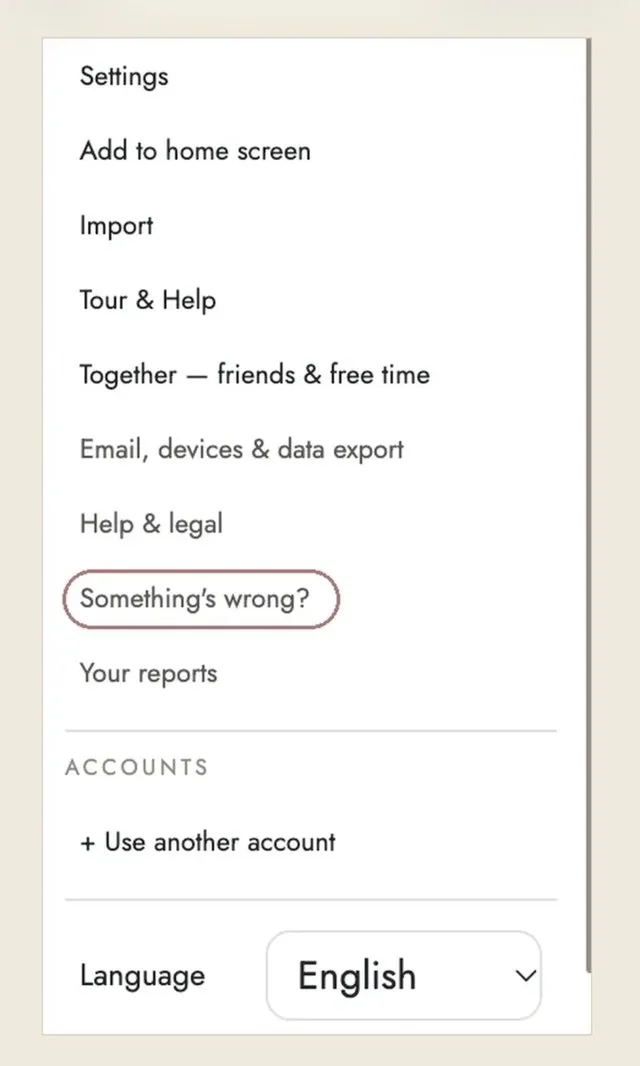
Nümia attaches a screenshot of your screen with the spot circled and notes where you were, so you never have to explain. The screenshot shows what's on your screen, so switch it off before sending if something private is visible.
What happens next: every evening I read everything and work on it. You'll see a short note at the top of Today when I'm looking into what you sent, working on it, and when it's done. Your reports (in the account menu) shows the status of each one. I don't reply individually, but I read every single report.
What you get
- Nümia with Vera free for 14 days, from the day you create your account.
- The Founding Member price before anyone else: €89 a year, locked for two years.
- A real say in Vera's personality while I'm still shaping it.
- A founding-only part in my letter on the 1st of every month.
After day 14
- On day 12 you'll see a note in Nümia with your Founding Member offer. It's completely optional.
- If you don't join, you continue on the free plan automatically. Nothing is deleted, and anything that needs Vera stays saved and readable.
- You'll never be charged unless you choose a plan yourself.
Your privacy
- Your planner is private. I don't read your events, notes, goals or finances.
- Automatic error reports contain only technical details, never your planner content.
- Screenshots are only taken when you press Send, and you can switch them off.
- Error details and screenshots are deleted after 90 days.
Questions
I didn't get the confirmation email.
Check Spam and Promotions and wait a few minutes. Then press Resend email on the sign-in page. If your invitation email is a Gmail address, you can also continue with Google.
I signed up with a different email.
Sign out (account menu → Use another account) and create a new account with the email your invitation was sent to. Only that email unlocks Nümia with Vera.
I don't see "Founding tester" or Vera is locked.
Open the account menu and check the email at the top. It must be the email your invitation was sent to.
I forgot my password.
On the sign-in page, press Forgot password? and follow the email.
Will I be charged?
No. There's no card and nothing can charge you. You'd only pay if you choose a plan yourself.
Can I use Nümia in Spanish?
Yes. Account menu → Language → Español.
Which devices work?
Any phone, iPad or computer with an up-to-date browser. Use the same account everywhere and everything syncs.
Does my data stay after the test?
Yes. Nothing you create is deleted.
How much time do I need?
About 10 minutes a day is perfect, but any amount helps.
I didn't find anything wrong.
Tell me what you liked and what you'd keep. That's just as useful.
Who sees my reports?
Only me, Tessa.
Can I invite a friend?
Not during the test, but you'll be the first to know when Nümia opens.
Can I stop anytime?
Yes. Just stop opening it. Nothing happens.
The app won't open at all, or I can't log in no matter what.
That's the only time to message me: +34 629 48 29 98.
Thank you for being here at the very beginning. Every report you send shapes what Nümia becomes.
— Tessa Roberts
Open Nümia